 Pocket Daily
THE POCKET DAILY GUIDE
User guide
From your first book to reader connections, reading places and screen settings.
01
Your first book
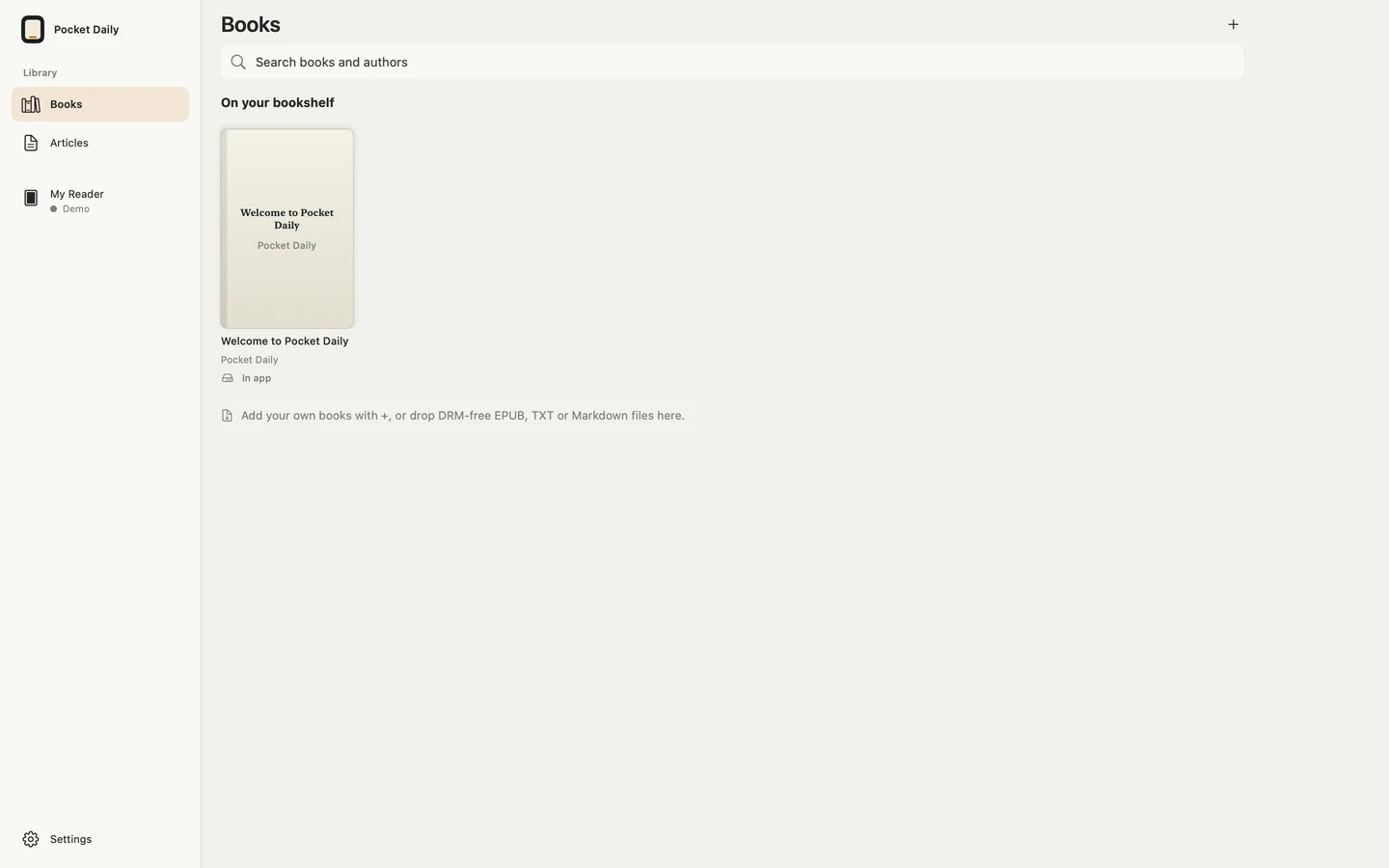
- Open Library → Books → Welcome to Pocket Daily. You do not need an account or a reader.
- Choose + to add DRM-free EPUB, TXT or Markdown from Files. On Mac, you can also drag book files into the Library.
- TXT and Markdown are converted to EPUB on import. An existing EPUB is kept unchanged.
DRM-protected store purchases cannot be opened. Download files from iCloud Drive or other online locations before going offline.
Books marks local copies In app and names readers holding matching copies. Reader-only titles appear under their reader with Not in app. Last seen is a saved observation; the card may have changed since that check.
02
Pages and text
- Forward: tap the right side of the page or swipe left.
- Back: tap the left side.
- Controls: tap the middle to show reading tools and Contents.
- Aa / Text & Page: choose font, size, spacing, margins and Paper, White or Night pages.
- Keyboard: use arrows, Space or Page Down.
The app's page appearance is separate from your reader's font and button settings. Change those under Reading Preferences below.
03
Connect an X3/X4
Check the firmware first
Full companion features need a compatible X3/X4 running Pocket Daily firmware. A device name alone does not establish compatibility. You can use the app's Library meanwhile.
On the same Wi-Fi
- On the reader, open Pocket Daily → Sync → Same Wi-Fi and join your network.
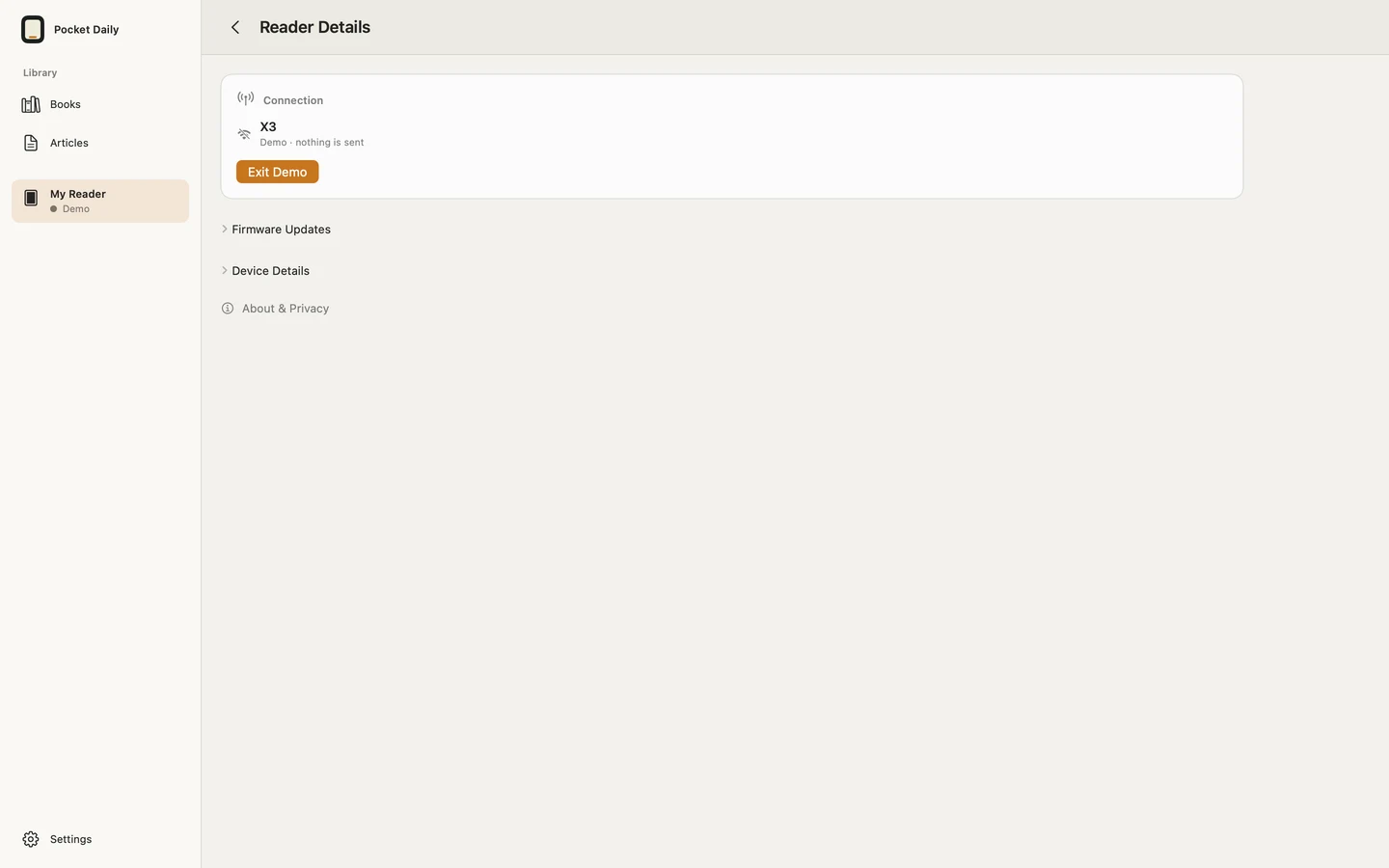
- In the app, choose My Reader → Connect Reader.
- Check the reader shown and connect. This route does not change your Apple device's Wi-Fi.
First setup or no router
Connect Reader → More → Set Up with Bluetooth… pairs through the system Bluetooth prompt, then sends Wi-Fi details to a supported reader. A fresh X3 may offer setup on its first boot. If skipped, start from the reader's Sync → Direct connection. Do not expect X3's automatic first-boot offer on X4.
Connect Reader → More → Connect Directly… explicitly joins the reader's temporary Wi-Fi. Follow the app and system confirmation prompts. Internet access can pause, so download needed books first.
Allow Bluetooth and local-network access when you use them. Mac Wi-Fi discovery may require location permission, but the app does not collect coordinates. Wi-Fi-name permission denial still leaves manual entry available.
Follow the highlighted menu pictures in the connection sheet. A previously Bluetooth-paired reader is woken automatically when available. A previous Wi-Fi connection alone is not a Bluetooth pairing. Supported firmware needs BLE standby or Settings → System → Allow app connection; the latter uses extra battery. A powered-off reader cannot be woken.
04
Send books or copy to SD
- Choose Send to Reader… on a Library book or an article with saved text.
- Confirm the destination reader in the task, connect if needed, then choose Send.
- Wait for the result. Open the book in the reader's Library. The app inventory shows the last observed device state.
You can reopen the task to check its result. If the save result is uncertain, reconnect the original destination reader and check before retrying. Unrelated prepared books and firmware are not sent with the task.
On Mac, copy to SD
Choose SD card in the same task and select a folder on an SD card mounted on your Mac. SD-copy results and wireless results are separate. Connecting a supported X3/X4 by USB does not necessarily mount its SD card; use a card reader if needed.
In My Reader → SD Card, Preview opens the full EPUB, TXT or Markdown in a temporary reader. Turn pages or use Contents to browse chapters. Preview does not save or sync your reading place. Closing removes the temporary copy; Add to Library separately keeps the original EPUB. Large text documents may need splitting before conversion.
Reading Preferences offers the sizes supplied by the selected font. Choose another font for more sizes when a family has only one.
Choose a book, image or supported learning pack with My Reader → SD Card → Add Files…. Only that file goes to the selected reader; unrelated prepared files stay separate. Mac can also add to a mounted SD card. All Files… browses folders, previews supported files or shows File Info, and confirms deletion only where the reader permits it. Image preview/deletion needs updated firmware; images support up to8 MB and16 megapixels. App Library copies are kept.
05
Keep your place
Every device needs the same book file. Share that file from the Library.
- Between Apple devices: sign in to iCloud with the same Apple Account and enable sharing in Settings → Continue Reading. This does not distribute book files automatically.
- With a reader: a connected reader with supported firmware exchanges reading places. Bluetooth exchange needs pairing and feature support; background delivery is controlled by the operating system.
- When another place is offered: choose whether to jump. The app never moves your page without asking.
Opening a book alone does not update its reading time. If a place is missing, check the file, sharing settings and reader connection first.
06
Home, Sleep and preferences
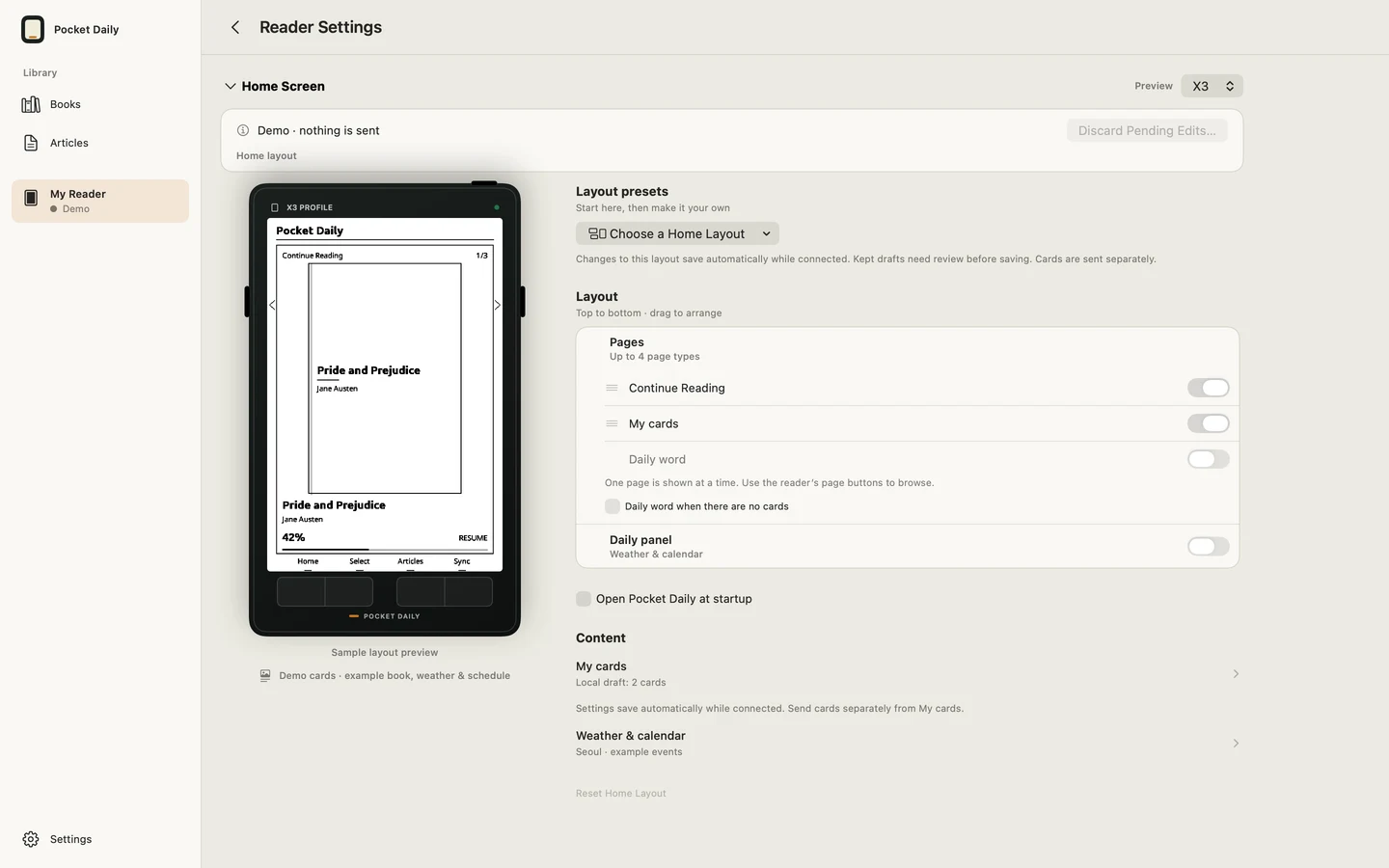
- Open My Reader → Reader Settings and select Home Screen or Sleep Screen.
- Choose a layout or change its order and review the preview. A sample-labelled preview is different from your reader's current state.
- Choose that screen's Apply to Reader and check the result.
A new My cards draft includes three editable cards. Card Collections offers 12 collections with 36 original cards. Existing drafts and deliberately empty sets are not silently replaced. Review a collection before replacing your cards.
Cards and weather/calendar sources have separate editors and apply actions. Closing an editor leaves changes local. Weather uses a city you choose; calendar events use calendars you permit. Both are optional.
Reading Preferences changes the reader's fonts, margins, orientation and page-button actions. Check the reader after saving. Demo mode never transfers or changes a device.
E-paper can retain a page while sleeping. A visible page alone does not establish the device's power or Wi-Fi state.
Fonts apply immediately. Install & Use installs and selects; Install only installs. Discard Pending Edits cancels unsaved changes and keeps already applied font choices.
Sending progress refers to the current file. Cancel stops pending work; fonts already installed remain.
07
Articles and subscriptions
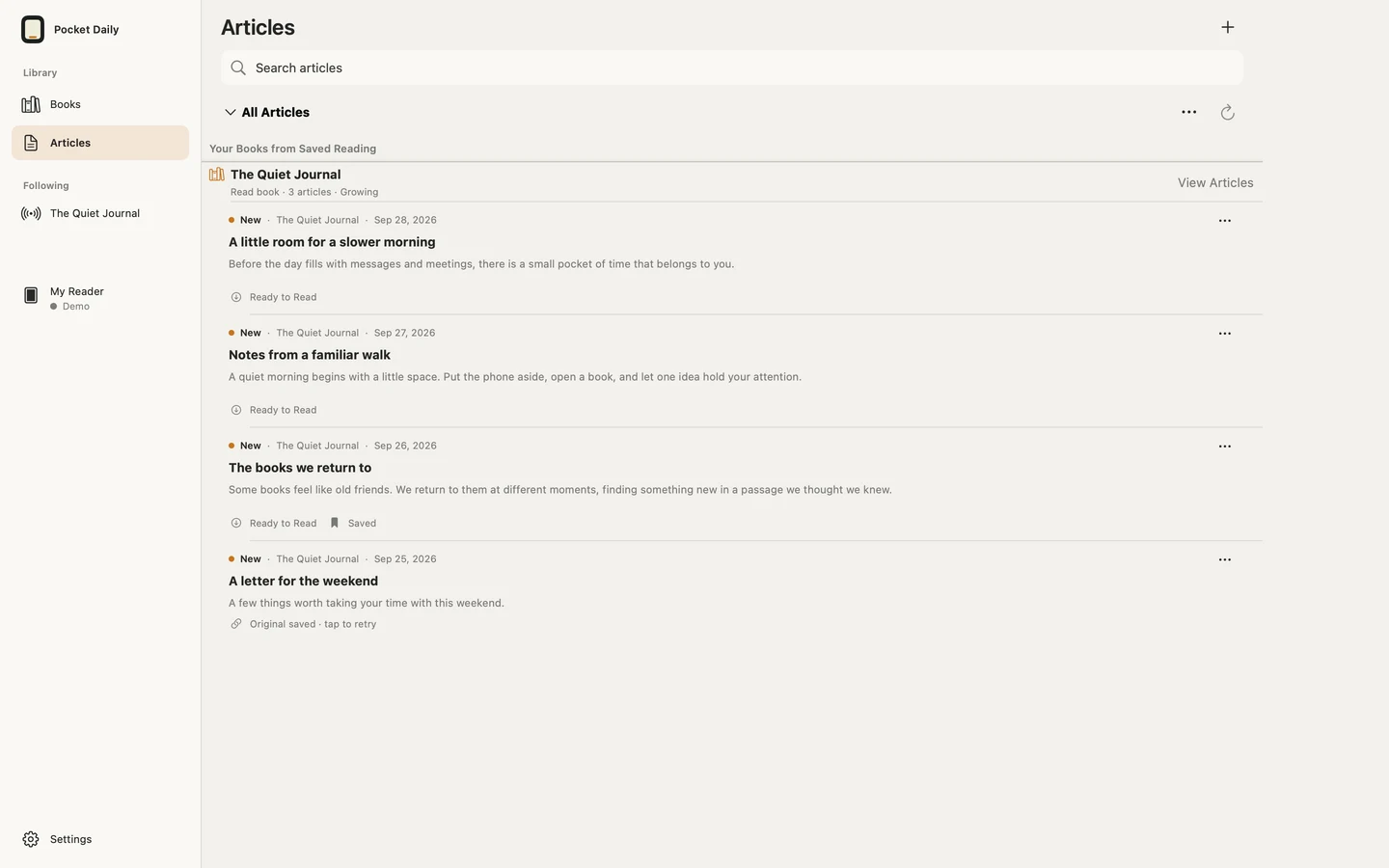
On iPhone or iPad, share a link or text to Pocket Daily, or use Library → Articles → +. Review extracted text before saving. If only a link was saved, choose Get full text or paste the text.
Add a direct HTTPS RSS or Atom feed under Subscriptions. Up to the latest 20 articles are collected on subscription; opening the app or choosing Refresh updates feeds. There is no email-account connection or server-scheduled delivery.
Saved bodies can be read offline. Read state, Save for Later, editing and Send to Reader are separate actions. Unsubscribing retains collected articles. Articles and subscriptions are local to this device, not automatically synced between Apple devices.
Tap a collection book title to read immediately. View Articles opens its article list. Optionally connect Gmail from ⋯ → Gmail Newsletters.
08
Firmware and compatibility
Before a compatible official release is published, the app may report that no update is available. Publishing this guide or video does not distribute the app or firmware binaries.
Update Pocket Daily
- When a compatible official release exists, connect in the reader's Sync → Same Wi-Fi.
- Open My Reader → ⋯ → Reader Details → Firmware and choose the offered update.
- A completed transfer is not an installation. Choose Confirm on the reader's own update prompt and wait for its reboot.
- Reconnect to the same reader and check its reported version.
Download Update for Later only prepares an official file; sending later and confirming on the reader are still required. Store builds do not import arbitrary local firmware files. On X3, use the app or supported SD route when an official release is available rather than the reader's native internet updater.
Move from ordinary CrossPoint
Check the exact model and installation eligibility first. With a compatible official image available, connect through File Transfer → Join a Network and follow Connect Reader → Install Pocket Daily in the app. After verified copying, use the reader's Settings → System → SD Card Firmware Update → pocket-daily.bin → Confirm.
Large Wi-Fi copies on CrossPoint 1.6.5 can fail. A failed copy is not installation. Confirm the model's supported SD installation and recovery route before proceeding.
Factory, locked or other models
Direct factory-firmware connections and a customer USB auto-installer are not provided. X4 Classic/V2 and X4 Pro are different models. Ask the seller if lock status is uncertain. Do not use the CrossPoint unlocker to install Pocket Daily. Have a backup and a confirmed recovery method first; use app-only reading when uncertain.
09
Free initial release
All features in the initial release are free, with no purchases, tip prompts or subscriptions.
10
Your data and permissions
Pocket Daily has no developer-operated account system, analytics, advertising or cloud relay. Books stay local; transfers go to a device or SD folder you choose.
Reading places use your own iCloud or a local connection. Feed, article, weather and official-update requests contact their respective providers. See the privacy policy for permissions and diagnostic-record details.
Before reporting a problem, review diagnostics for passwords, pairing codes, private books, events and network details.